If you are an AWS user working with EC2 instances, there is a high chance of needing to clone existing EC2 instances. The steps below describe the way to achieve this.
Navigate to EC2 Console page
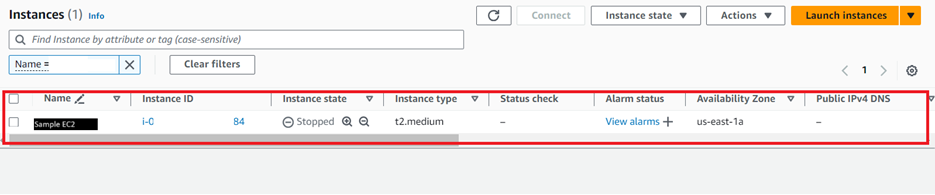
Find and Navigate to the EC2 instance that you want to create clone
Under the details tab in the bottom window navigate to the AMI ID. Next Click AMI ID link
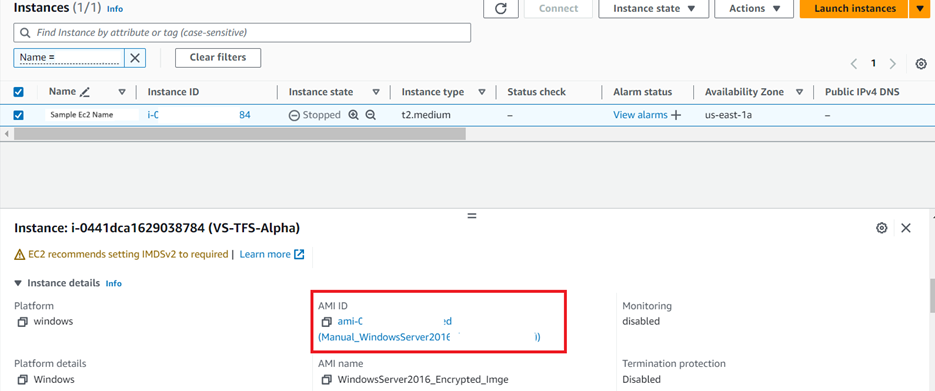
This will open the “Amazon Machine Images” page
Here, either right-click on the image in the list box and select “Launch instance from AMI” from the menu. Alternatively, just select the image and click on “Launch instance from AMI” on the top-right side of the page.

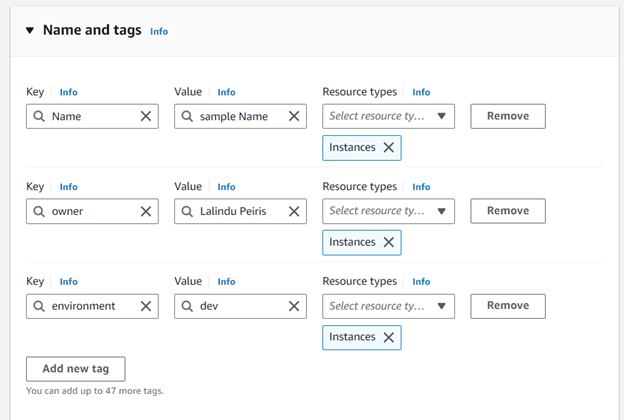
In the next window, first, fill in the necessary tags, including the name. Tags help to easily filter and find EC2 instances.
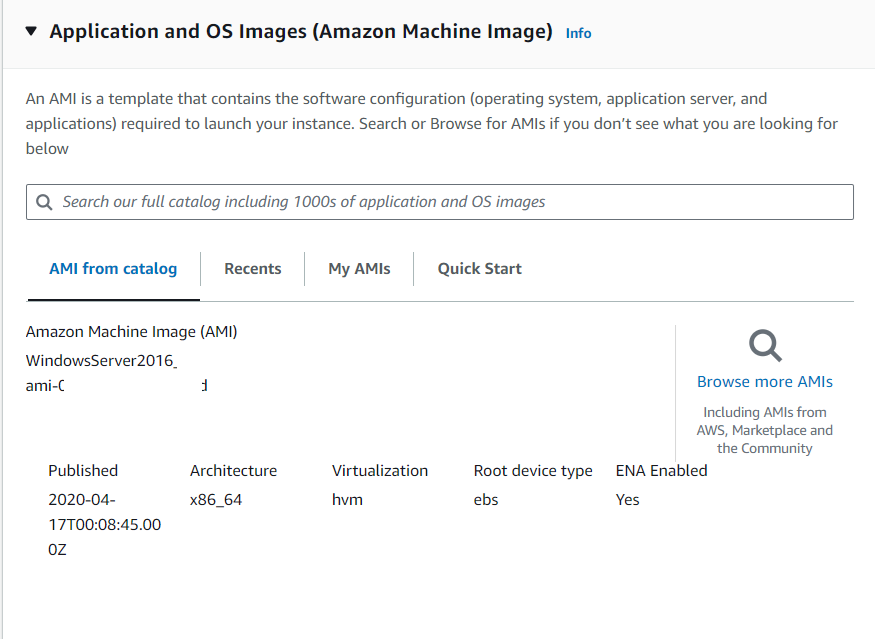
Next, select the necessary OS specifications. Do not change this if you desire to have similar specifications as the existing EC2 machine.
Next select the type of EC2 machine
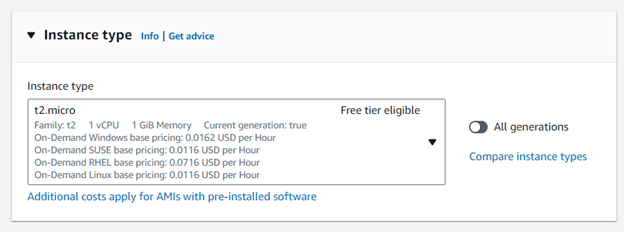
Next, provide Key pair details. This helps securely log in to the new EC2. It is possible to use the existing Key pair that was used for the existing EC2 machine. Create a new key pair if you wish to have new security specifications for the new EC2 instance.

Next, fill up the network settings. It is possible to either select existing network settings or define new ones for the new instance. Make sure to set the right access level based on requirements. For example, if public access is required, necessary changes have to be made here.
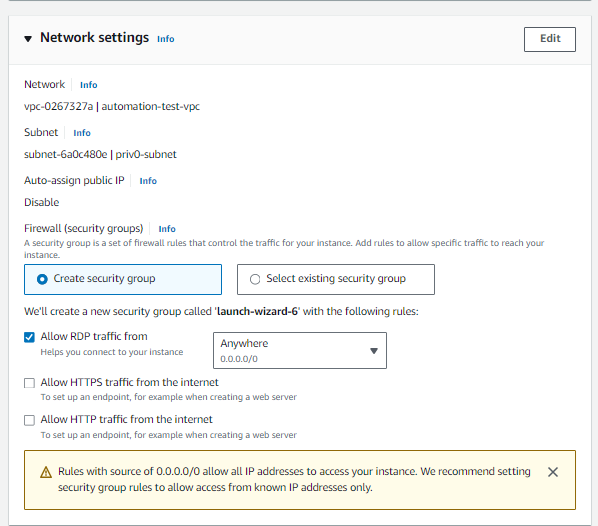
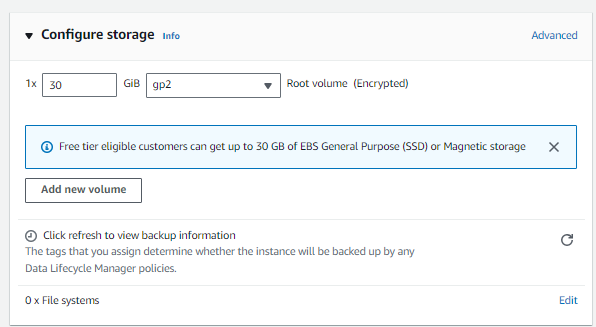
Finally, fill in the hard disk size of the new EC2 instance. This can be adjusted at a later stage as well.
Once all are set click on “Launch instance” button on the right side panel
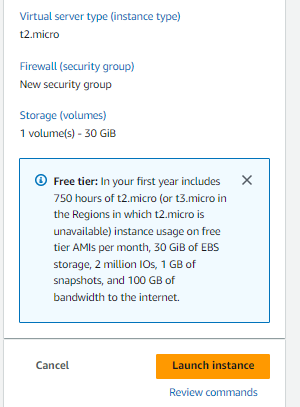
This will create your new copy of EC2 instance


No comments:
Post a Comment